Site and WordPress account connections
A WordPress site reaches WP Engine AI through two separate connections, made by different people at different times.
A site connection puts the site in your account. It is made once, by whoever administers the site, and it is what makes the site visible to everyone on the account.
A WordPress account connection is yours alone. You only need one if you want to run WordPress abilities or manage the site — from Coworker in WP Engine AI, or from an MCP client like Claude Code. Everything else works without it: listing your sites, reading site metadata, and searching a site’s knowledge base all work as soon as the site is connected.
If you never intend to have an agent act on a site, you can stop after the site connection.
Overview
Section titled “Overview”| Connection | Who makes it | What it grants | Needed for |
|---|---|---|---|
| Site connection | The site’s administrator, once | The site is visible to the whole account | list_account_sites, the knowledge base tools |
| WordPress account connection | Each person, per site | That person may run abilities as their own WordPress user | list_site_abilities, run_site_ability, search_abilities, Coworker site actions |
The second connection is per person, not per account. Connecting a site grants nobody the ability to act on it — including the administrator who connected it.
Site connection
Section titled “Site connection”What it is
Section titled “What it is”The site is registered to your account. This happens when the site’s administrator installs the WP Engine AI plugin and completes the registration flow.
What it gives you
Section titled “What it gives you”- The site appears in
list_account_sites - Site metadata: URL, display name, status
- Knowledge base access —
get_site_knowledge_base,search_knowledge_base, andfetch_knowledge_base_document— where the knowledge base is enabled
What it does not give you
Section titled “What it does not give you”Running abilities needs the second connection. Until you make one:
list_site_abilitiesreturnsnot_personally_connectedrun_site_abilityreturnsnot_personally_connected
A site connection is account-scoped. If ten people share the account, all ten see the site — and none of them can act on it until each has connected their own WordPress account.
WordPress account connection
Section titled “WordPress account connection”What it is
Section titled “What it is”You have completed the Connect WordPress Account consent flow, started from that site’s WordPress admin. That links three things:
- Your identity, from your user API key
- The site
- Your WordPress user on that site
From then on, abilities you trigger run as your WordPress user, with exactly the permissions that user has.
When you need one
Section titled “When you need one”Only for acting on a site:
- Running WordPress abilities from Coworker in WP Engine AI
- Running them from an MCP client —
list_site_abilities,run_site_ability,search_abilities
You do not need one to list sites, read site metadata, or search a knowledge base.
How to make one
Section titled “How to make one”The flow starts in WordPress admin and finishes in WP Engine AI, so expect to be signed in to both.
-
Ask for your sites’ connection status, or call
list_account_sites. -
For any site with no
wp_connection_statusat all, the answer carries a link. Open it while logged in to that site’s WordPress admin. If no link comes back, build it from the site URL:{site_url}/wp-admin/admin.php?page=power-overview&action=trigger_wp_connectionOpening this link is the only way to start the connection — there is no option to start it manually anywhere in WordPress.
-
WordPress hands you to WP Engine AI, signing you in if you aren’t already. Review the permissions on the consent screen there.
-
Confirm with Connect WordPress User. You land back in wp-admin, now connected.
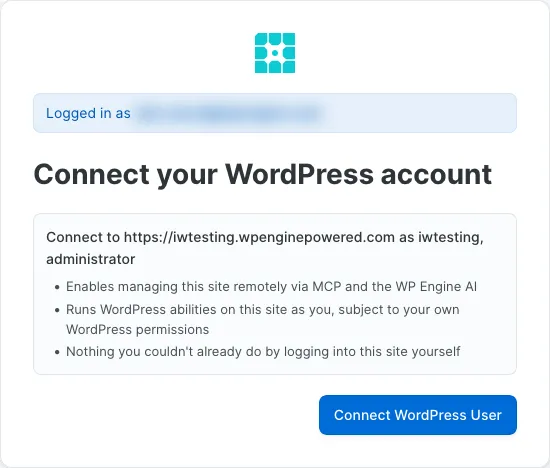
Once per site, per person. The connection lasts until you revoke it in WordPress admin, your WordPress user is deleted, or your account loses access to the site.
Why it is separate
Section titled “Why it is separate”WordPress abilities can publish posts, delete users, install plugins, change settings, and read private data. Keeping this connection separate and personal buys three things:
- Explicit consent — nobody acts on a site on your behalf until you say so
- Real user identity — abilities run as your WordPress user, so your role and capabilities still apply, and the site’s logs name you rather than a service account
- No blast radius from a shared key — a key shared across a team cannot silently act on every site in the account
The gateway checks the connection on every ability call, so a site you have not authorized stays untouchable even with a valid key.
Connection states
Section titled “Connection states”list_account_sites, called with a user API key, reports wp_connection_status for each site:
| Status | Meaning | What to do |
|---|---|---|
connected |
Both connections are in place | Nothing — you can run abilities |
needs_reconnect |
Your connection went stale | Re-authorize |
site_requires_https |
The site is not served over HTTPS, so no connection can be made | Enable SSL on the site first |
| (omitted) | You never connected, the connection was revoked, or you used an account API key | Make the connection, or switch to a user API key |
There is no not_connected value — when you have no usable connection the field
is absent from the response entirely. Absence is therefore ambiguous on its
own: it cannot distinguish “never connected” from “revoked”, and an account API
key omits it on every site regardless of the real state.
needs_reconnect shows up when your WordPress credentials changed, the site
invalidated its sessions, or the connection was flagged for reauthorization. The
fix is the same as making it the first time — How to make one,
opening the link while logged in to wp-admin.
What each credential can reach
Section titled “What each credential can reach”| Credential | Sees | Can act on |
|---|---|---|
| User API key | Every site in your account | Sites where you connected your WordPress account |
| Account API key | Every site in your account | Nothing — an account key has no acting user |
An account API key can list sites and search knowledge bases, but it resolves no WordPress user, so it can never run an ability.
Worked example
Section titled “Worked example”-
Alice’s team connects
example.comto their account. The site is now visible to everyone on the account. Alice callslist_account_sitesand seesexample.comlisted with nowp_connection_statusfield on it. -
Alice connects her WordPress account for
example.com, because she wants Coworker to draft posts there. She opens the connect link while logged in to wp-admin and authorizes the gateway to act as her WordPress user. -
Alice runs an ability.
run_site_abilitycreates a post; the gateway checks her connection first, the ability executes as her WordPress user, and the site’s logs show the post was created by Alice. -
Bob, on the same team, tries the same thing. He gets
not_personally_connected— the site connection is shared, his WordPress account connection is not. Bob connects his own, or carries on using the site’s knowledge base without one.